Overview
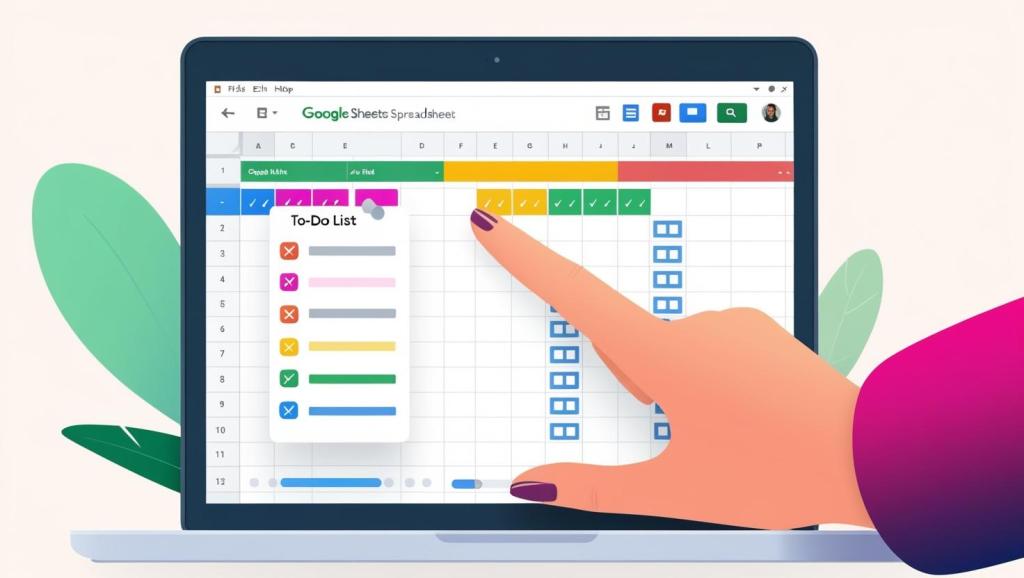
Managing tasks efficiently means more than just making lists—it’s about seeing them in context. Our recent project transformed a standard Google Sheet into a dynamic planning tool by connecting a structured To-Do List with a visually organized Calendar View. With automation at its core, this solution saves time, reduces errors, and keeps responsibilities front and center.
The Goal
We aimed to simplify how we track and visualize task deadlines. The idea was simple:
“Enter tasks in the To-Do List once, and have them automatically show up on the Calendar based on their due dates.”
But turning that into an intuitive, error-proof workflow required a thoughtful design and a touch of Google Apps Script.
How It Works (Workflow)
The Sheets
- List Tab: Our main entry point for tasks. It includes columns like task type, owner, due date, and a checkbox labeled “Add to calendar?”.
- Calendar Tabs: Each tab represents a month (formatted as
M-YY, like5-25) and displays a grid-style calendar. Dates align with their correct days of the week.
Automation Logic
- ✅ When a user checks the box in the “List” tab:
- The task is automatically added to the correct date in the corresponding Calendar tab (based on the Due Date).
- The entry includes key fields: Type, Owner, What, and Key.
- If multiple tasks share the same due date, they are stacked vertically—no overwriting.
- ❌ When the checkbox is unchecked, the task is automatically removed from the Calendar.
- 🔁 If a user changes the Due Date, the script:
- Removes the task from the original calendar cell, and
- Adds it to the new corresponding calendar cell based on the updated date.
Custom Toolbar Button
A new script adds a custom menu option in the toolbar to:
- 📅 Automatically create the next month’s calendar:
- Duplicates a template.
- Calculates correct weekday alignment (Monday–Sunday).
- Updates cell
A1with the full month name (e.g., “May”). - Skips any months already created—avoiding duplicates.
The Impact
✅ Single Source of Truth
Tasks are entered once—no more redundant entry between planning and tracking sheets.
✅ Visual Clarity
Deadlines appear directly in a traditional calendar layout, making it easier to scan and manage workloads.
✅ Time Saved
Manual copying and formatting are eliminated, allowing users to focus on the work—not the tool.
✅ Adaptable and Smart
Whether dates change, tasks are removed, or new ones are added, the sheet adjusts dynamically—no manual cleanup required.
✅ Scalable
As months go on, users can generate new calendar tabs with just one click—always accurate, always aligned.
Conclusion
With a little scripting and thoughtful sheet design, we’ve transformed Google Sheets into a powerful lightweight planning tool. It’s a great reminder that the tools we already use can be adapted to meet real-world workflows with just a bit of creativity and code.
Whether you’re a team leader managing deliverables or an individual trying to stay organized, this solution keeps your plans visible and actionable.
 BAEZ TECH SOLUTIONS
Leave a comment